For office staff & field techs
Quotes: build, send, remind, and revise
8 min read Includes video walkthrough
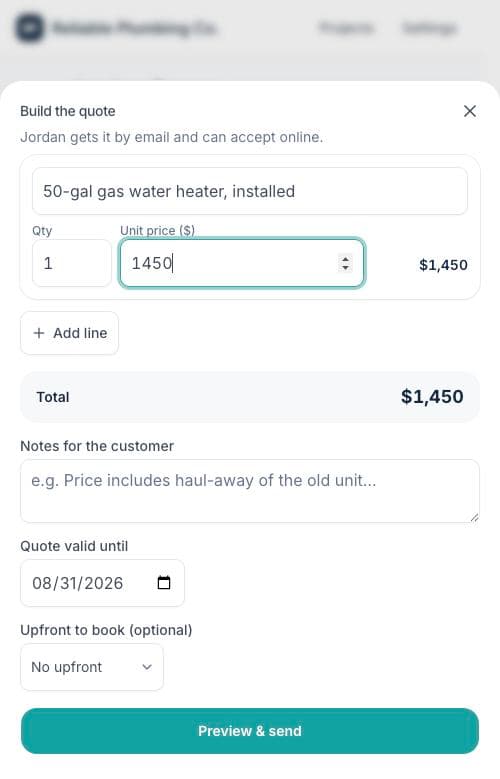
The Build quote button lives in the bar at the bottom of every project, at every stage. Line items, an optional deposit, a validity window — and one send that emails the customer a branded quote they can accept from their phone.
1. Build it
- 1Open the project and tap Build quote in the bottom bar.
- 2Add a line per item of work — description, quantity, price. The total runs live as you type.
- 3Add notes for the customer: what's included, what you'll check before extra work, anything that builds trust.
- 4Set how long the quote is valid (14 days is the default).
- 5Optionally set an upfront deposit — a dollar amount or a percent; the customer sees it both ways.
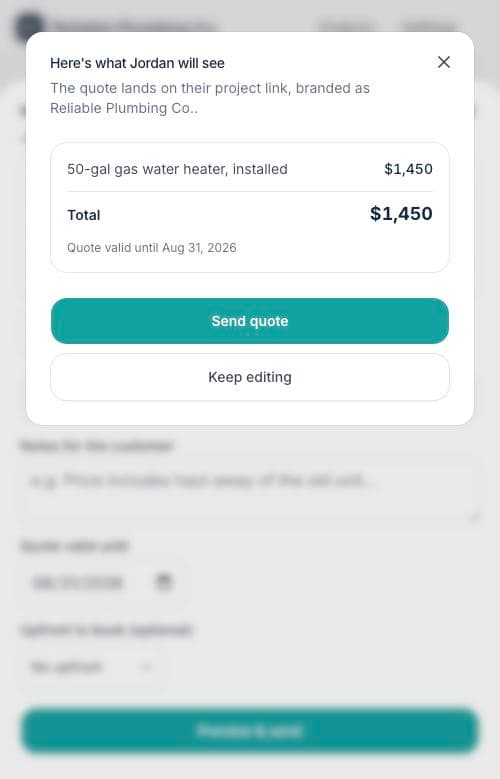
2. Preview, then send
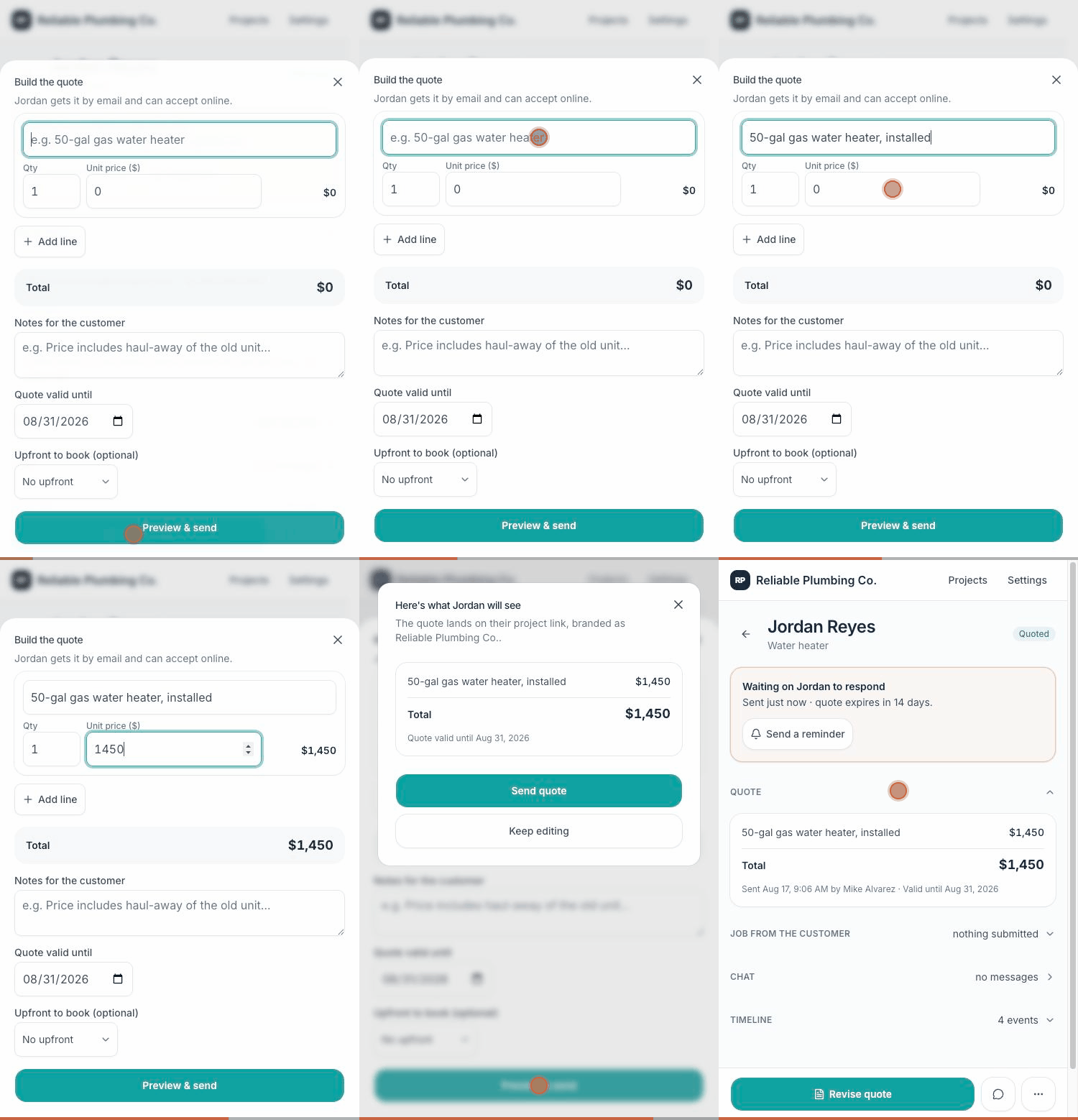
3. After you send
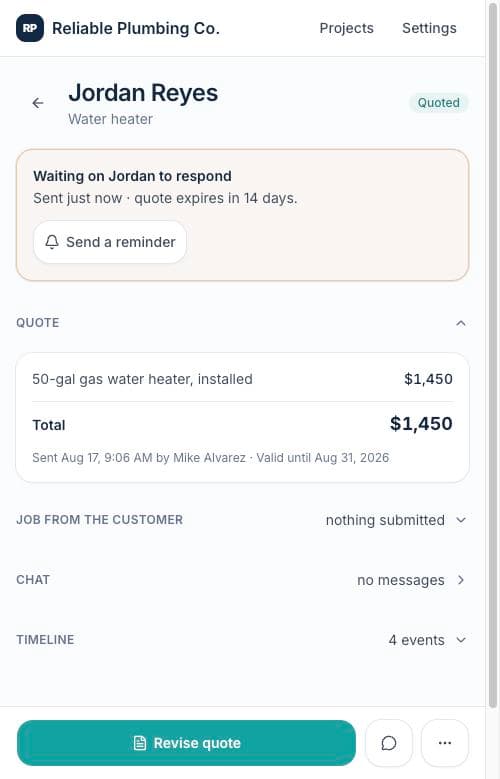
- Waiting: the stage card shows when the quote expires; Send a reminder nudges the customer without touching the link.
- Revising: tap Revise quote any time — the builder opens pre-filled, and sending replaces the old quote cleanly. The customer only ever sees the latest.
- Declined or expired: nothing is lost. Revise & resend restarts the clock, pre-filled with the old numbers so you can adjust.
Tip: Quotes with an upfront amount need payouts set up on the account (an owner does this once in Settings → Deposits & payouts). Quotes without a deposit always work.