For business owners
Your team and your bill: seats, invites, and the billing screen
5 min read
Your plan covers you. Each teammate you add is a small flat amount per month — and pending invitations are free, so inviting someone costs nothing until they actually join.
1. Invite a teammate
- 1Go to Settings → Team and tap Invite.
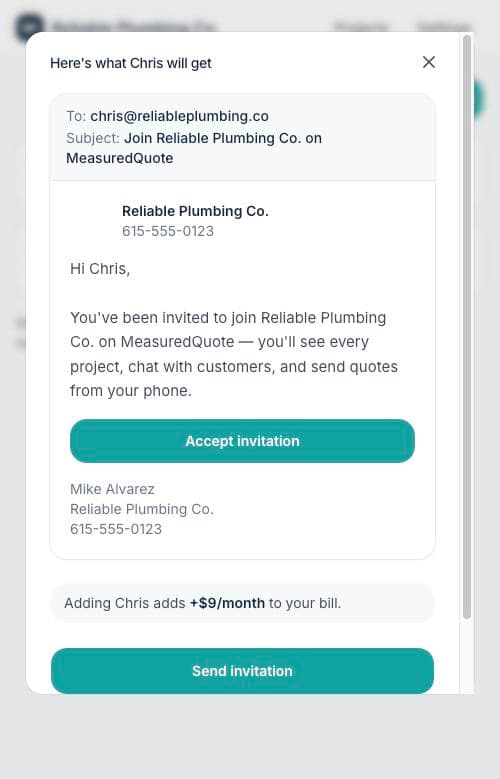
- 2Enter their name and email — the invite dialog shows exactly what joining them adds to your bill before you send anything.
- 3They get a branded email with one button: Accept invitation. They create their own sign-in and land in your projects.
- 4Your bill updates only when they accept — prorated, so you never pay for time before they joined.
2. What teammates can and can't do
- Members get full access to projects, chat, and quoting — everything for the day-to-day.
- Business settings, team management, billing, and payouts stay with you, the owner.
- Every message and quote is attributed by name, so customers always know who they're talking to.
3. Reading your billing screen
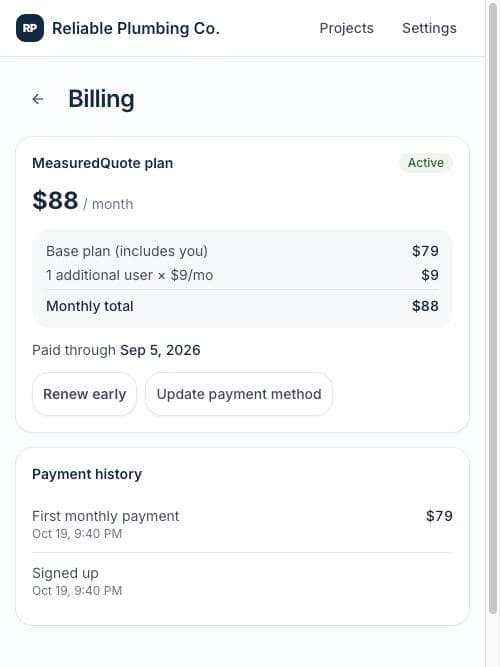
Settings → Billing shows the itemized math: your base plan, the number of additional users, and the monthly total, plus your payment history. Card updates and invoices open in Stripe's secure billing portal — tap Manage billing & payment method.
Tip: Removing a teammate takes effect immediately and reduces the next bill. Their past messages and quotes stay on every project's history — nothing is lost.